
We've streamlined the workflow for adding components and cables to your harness designs. This update introduces generic components and cables that can be added directly from the Harness Builder and wire label export for heat-shrink printers.
New Features
Generic Components from Harness Builder
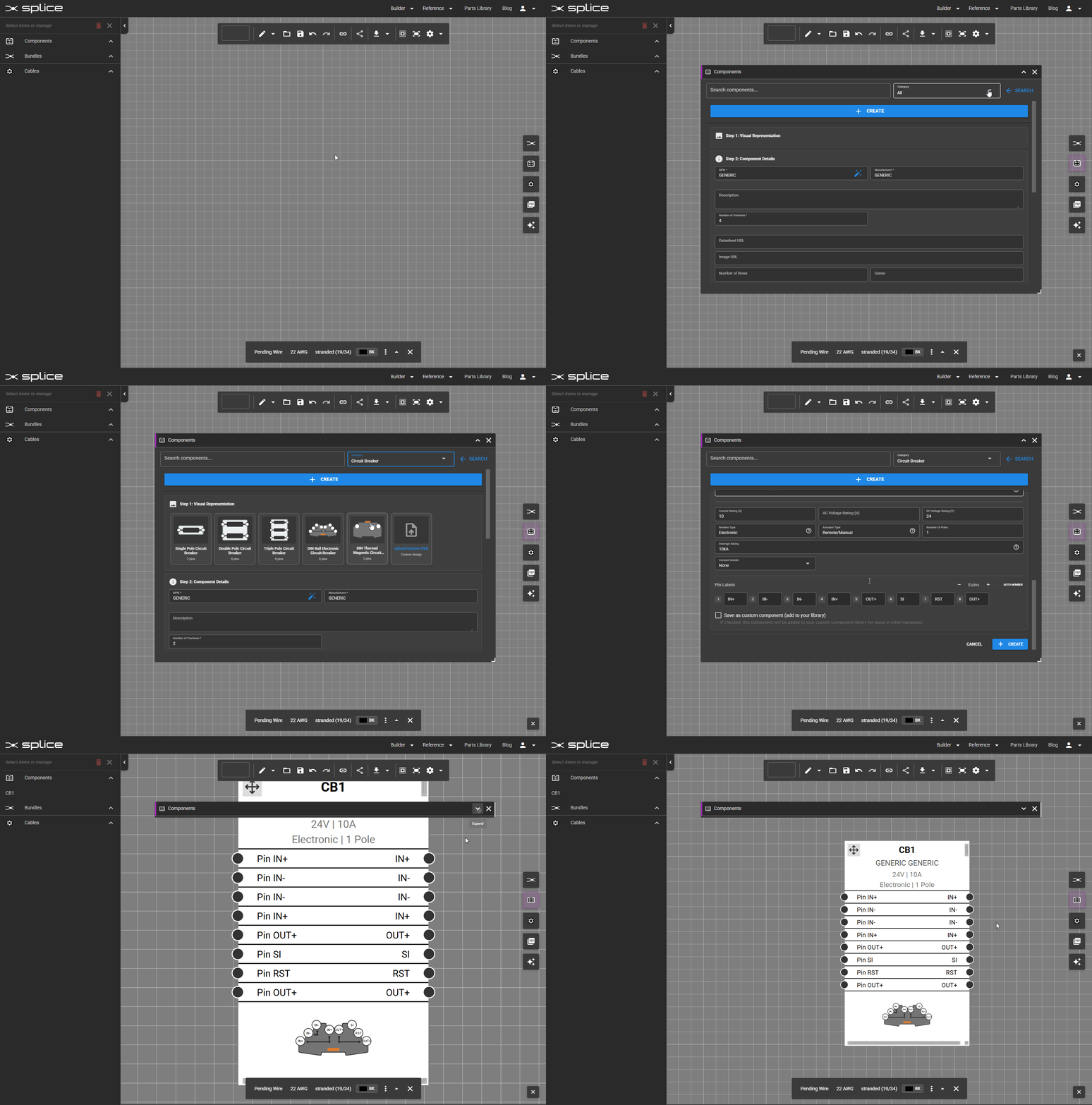
You can now add components that don't exist in the library directly from the Harness Builder:
- Open the Components floating panel (click the connector icon on the right side or press C)
- Click the Create button in the panel header
- Select a category template (power supply, circuit breaker, relay, contactor, fuse, switch, push button, fan, motor, timer, PCB, etc.) or start from scratch
- Set the number of positions for your component
- Enter an MPN and click the magic wand button to auto-fill details from Digi-Key (manufacturer, description, datasheet, image)
- Use the category template icon or upload your own custom image (SVG or PNG)
Generic Cables from Harness Builder
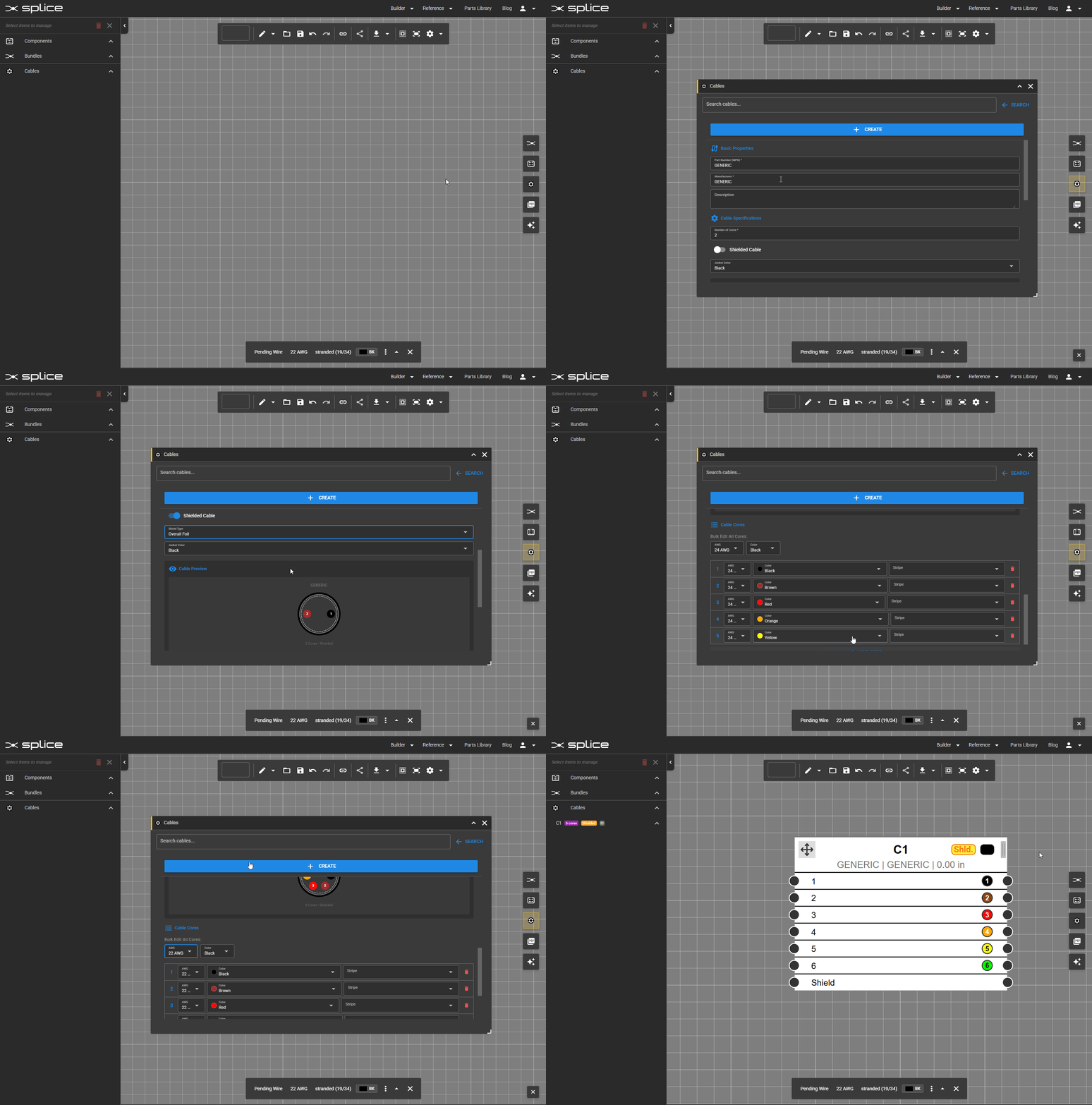
Similarly, cables that don't exist in the library can be added directly from the Harness Builder:
- Open the Cables floating panel (click the cable icon on the right side or press B)
- Click the Create button in the panel header
- Specify the number of cores and wire gauge
- Configure shielding options with a single toggle
- Set core colors individually or apply standard color codes
- Add part details (manufacturer, MPN) as needed
Custom Graphics via Upload or Paste
Add custom visuals to any component using the new image upload feature:
- File upload: Click "Upload SVG or PNG" to select files from your computer
- Clipboard paste: Use Win+Shift+S (Windows) or Cmd+Shift+4 (Mac) to capture a screen region, then click the paste button
- Automatic scaling: Images are scaled and centered within the component block
- Mate and wire side: Upload different images for each side of the component
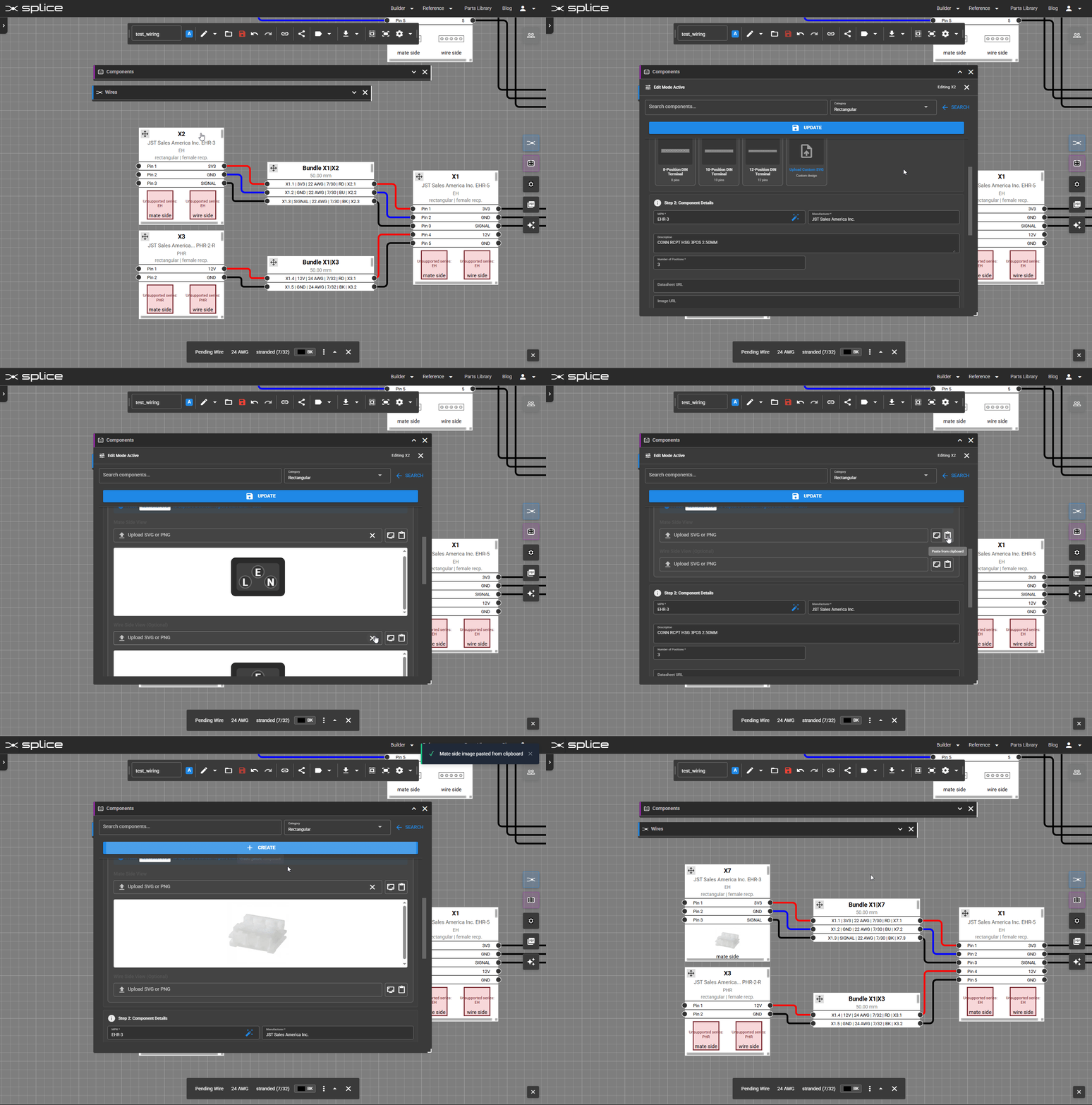
This is ideal for manufacturer graphics or custom drawings to your components.
Wire Label Export for Heat-Shrink Printers
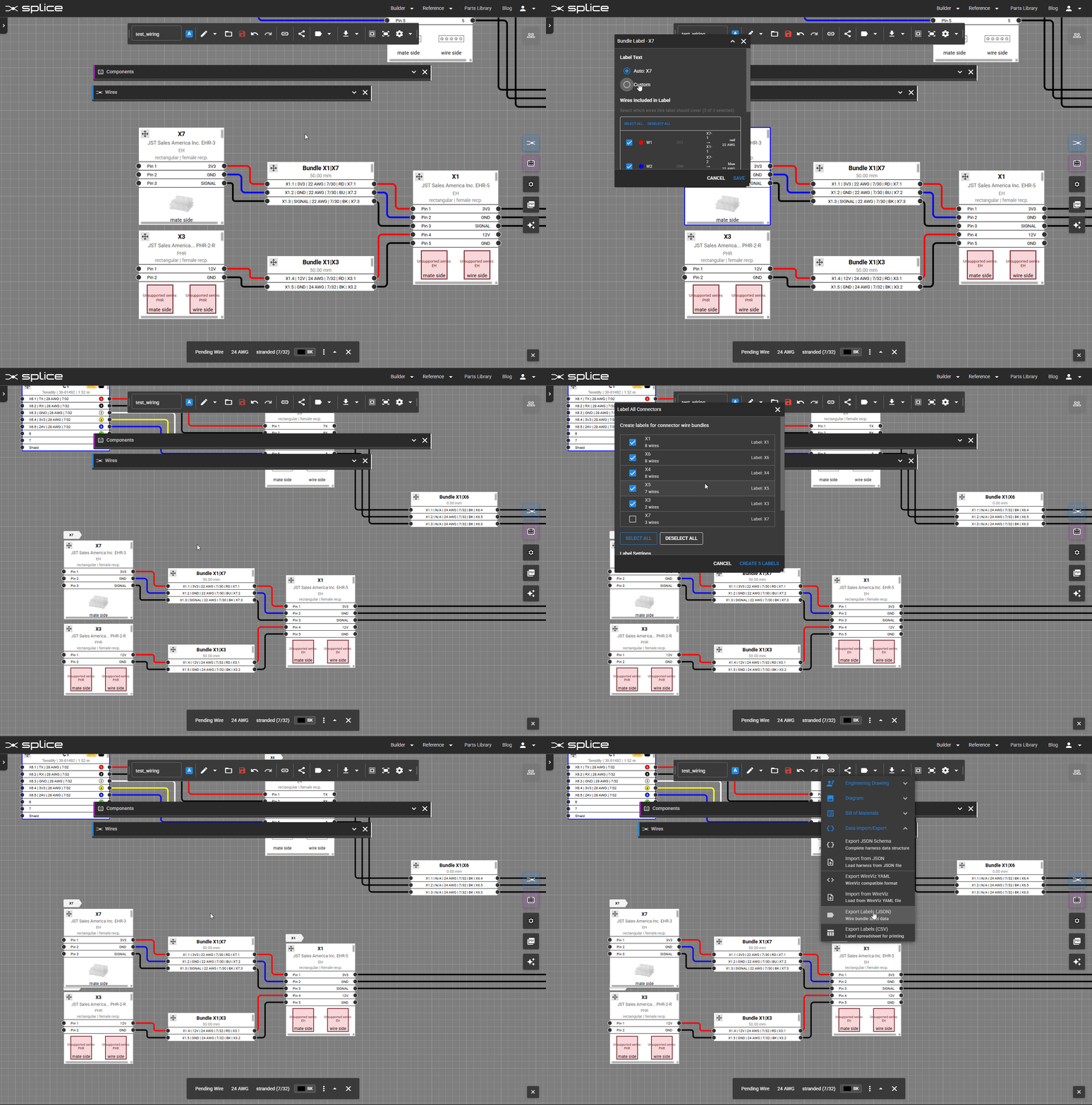
Export wire labels in formats compatible with heat-shrink label printers:
- Apply to all connectors: Generate labels for every connection in your harness at once
- Apply to individual connectors: Click a connector, then click the label icon in its toolbar to configure labels
- Wire association: Choose which wires each label applies to
- Export formats: Download label data compatible with popular heat-shrink printer software
Bundle Labels
Add visual labels to connectors on your harness canvas:
- Easy access: Click a connector to show its toolbar, then click the label icon
- Multiple labels per connector: Add as many labels as needed and associate each with specific wires
- Customizable appearance: Set label text, background color, and text color
- Flexible positioning: Labels appear as colored tags adjacent to connectors
- Visibility control: Toggle label visibility in the label editor dialog
What's Next
Short Term Goals
- Enhanced WireViz YAML import compatibility
- Include connector graphics in WireViz YAML exports
- Additional component category templates
Medium-term Goals
- Gerber file parsing for automated harness creation from PCB designs
We're tracking bugs, feature requests, and improvements on GitHub. Please share your feedback!